.svg)
Normally only one branch is active at a time. Switching branches will apply _all_ of the changes between them. Sometimes it is helpful to have multiple simultaneous branches. For instance, consider a long-running acceptance test with simulation code. This can be accomplished with two branches - 'main' and 'simulate'. These are initial exactly the same code, except in the 'simulate' branch the hardware emergency stop should be simulated to be TRUE. As testing proceeds, an issue is found and should be updated in both 'main' and 'simulate'. However, the emergency stop should never be changed in 'main' - so a regular merge won't work.
Instead, we can use 'worktrees' to have both projects available at the same time and manually compare or copy changes between them.
(1) First open the 'main' branch of the repository in Copia Desktop. In this example we have a functioning ESTOP check.
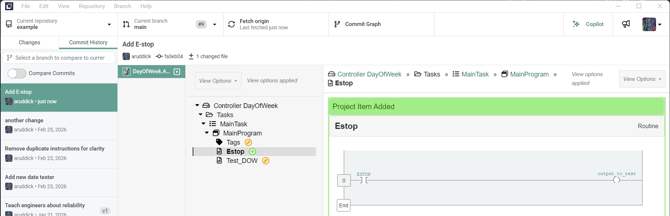
(2) Open a Command Prompt at the current repository location with Repository > Open in Command Prompt
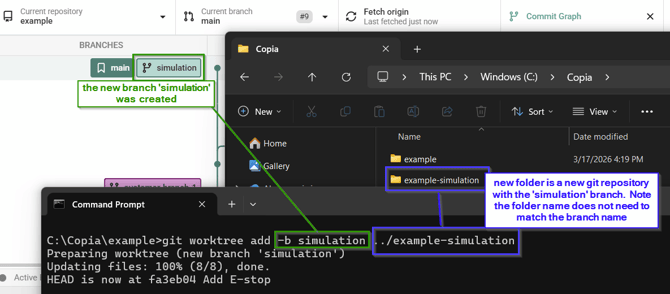
(3a) If the branch DOES NOT exist: Create a new worktree (and branch for that worktree) and tell git where to place it. In this case '..' means go up a directory, and "-b simulation" tells git to create a new branch.
git worktree add -b simulation ../example-simulation

(3b) If the branch DOES exist: Create a new worktree and tell git where to place it, and which branch to use. In this case '..' means go up a directory, there is no "-b", and the name of the existing branch comes after the directory.
(4) Make sure the new folder for the worktree was created as expected from either (3a) or (3b)
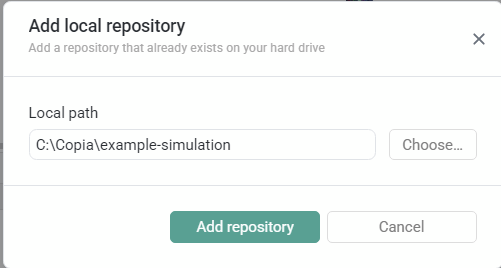
(5) [If desired] Add the new worktree as a new repository in Copia Desktop
Note that the repository name will always remain 'example' in the upper left. However, both worktree folder names are now visible in the left dropdown. It is recommended you use this dropdown, not the branch dropdown, to change worktrees. Keep careful track - it's easy to get confused.
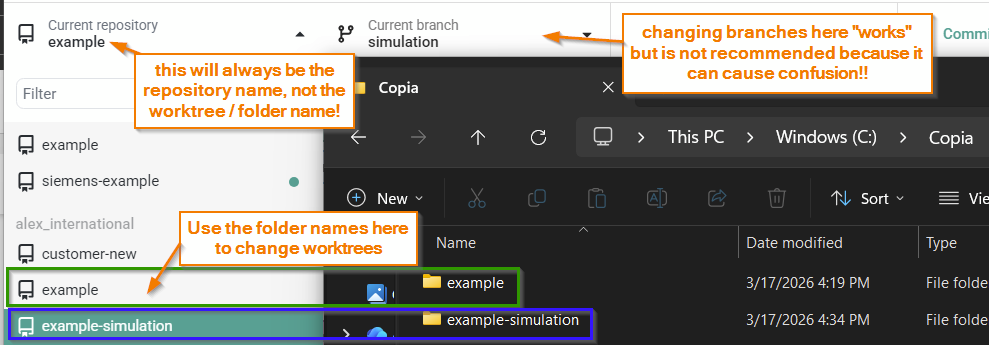
(5) Opening the PLC file from the example-simuation worktree (simulation branch), make whatever changes are desired. In this case we'll make two changes, close the file, and commit/push as normal. Note if you don't see the changes in Copia Desktop, change the worktree on the left not the branch on the top!
-
simulate/bypass the ESTOP only in the testing branch.
- change the output in both branches
(6) By opening the two PLC projects side-by-side, using the Clipboard, or even manually, copy over only the second change to the main branch and save it. Change back to the example worktree (main branch) in Copia Desktop and commit/push as normal.
(7) When finished, use git worktree remove ../example-simulation to delete the worktree. Note: do this from the main folder (example not example-simulation)
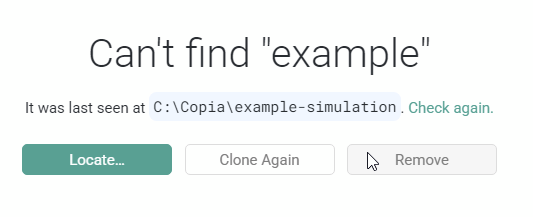
 (8) Copia Desktop will lose track of the worktree, so click Remove.